

 Sep 21, 2026
 Max 24 min read

Short answer
WooCommerce’s built-in filters only work on the shop page. Nothing you can change in the settings will make them filter a page you built yourself.You need a filter that either attaches to the grid you already have or brings its own results.
Jump straight to the fixes →
The symptoms
5 signs your WooCommerce filter is not working on a page
Nothing is broken, and you did not do anything wrong. This is how WooCommerce works out of the box. See if one of these matches what you are seeing:
They are all the same problem wearing different clothes. Here is what is actually going on.
The cause
Why WooCommerce filters only work on the shop page
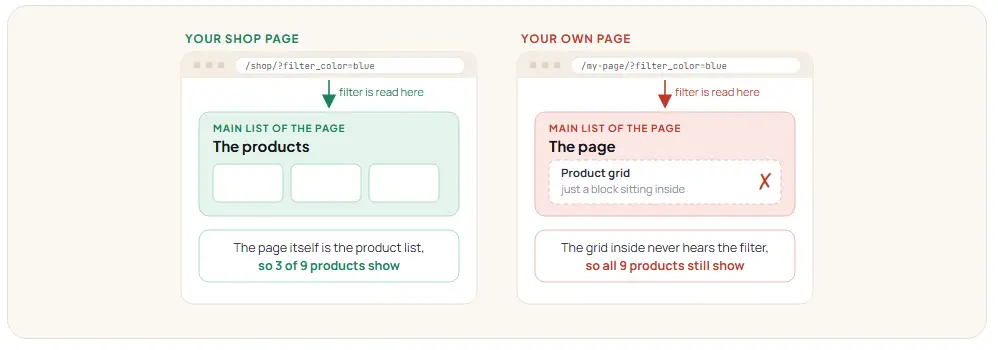
WooCommerce filters change the web address, and only the page’s main list reads it. On the shop page the main list is the products. On any other page the main list is the page, and the product grid inside it is ignored.
In plain English
On your shop page, that main list is the products. So when you tick a filter and the web address changes, the shop page reads the address, sees “only blue ones please”, and loads only the blue products.
Your own page is different. The main list is the page itself. The product grid you dropped onto it is just a block sitting inside the page — like a picture hanging on a wall. The filter shouts its instructions at the page. The page listens. The product grid inside it never hears a thing.
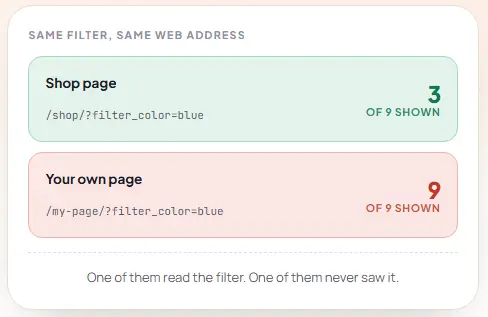
The proof: one web address, two different results
Only the three blue products stayed. The count updated to “Showing all 3 results”.
Every product still there. Blue, red and green, exactly as before the filter was applied.

Every setup we tried
What happens in each setup, tested on WooCommerce 11.1
Test 1 — the control
WooCommerce filters on the shop page
Our baseline. Ticked "Blue", the three blue products were left, everything behaved. This is what the other three setups are measured against.
WorksTest 2
Product Filters block on a normal page: no options appear
The filter heading appeared, but the tick boxes were completely empty. No Blue, no Red, no Green. So for a lot of people the complaint is not "clicking does nothing" — there is nothing to click in the first place.
Shows no optionsTest 3
Legacy filter block on a page: the URL changes, the products don't
This one did show its options. We ticked "Blue", the page reloaded, the box stayed ticked and the address said filter_color=blue — and all nine products were still sitting there. This is the one most people describe.
Test 4
"Sync with current query" on a page: everything disappears
This is the setting everyone tries next, and it makes things worse. The page came back completely blank — no filter and no products at all. Because the page is now trying to show "whatever this page lists", and a page does not list products.
Empty pageOne myth we can rule out
Setting your shop as the homepage is fine. It does not break filters. We tested it and they worked normally. Older advice online still says otherwise — it is out of date.
The fixes
How to fix WooCommerce filters on a custom page: 4 options
01 Use the shop or product category page instead
Stop building your own page. Use the shop page or a product category page, and change how it looks instead of where it lives.
Trade-off: you cannot add your own sections above or below, and you get one product grid per page. Fine for a plain store, frustrating for a landing page.
02 Link to pre-filtered shop pages
Put buttons on your page that go straight to a filtered shop page — “Shop Blue Shirts”, “All Sale Items”, and so on.
Trade-off: this is not really filtering. The visitor leaves your page, and to change their mind they have to go back. Good for a few shortcuts, not for browsing.
03 Have a developer change the page query
A developer can rewrite what your page loads so the product grid becomes the main list, and the filter can then reach it.
Trade-off: it is custom code. It fixes one page only, it breaks page numbers easily, and somebody has to look after it every time your theme or WooCommerce updates.
04 Use a filter plugin built to handle this
A filter made for this either attaches itself to the product grid already on your page, or brings its own results with it. Either way it stops depending on the page’s main list, so it works wherever you put it.
Trade-off: you are adding a plugin. In return you get filtering on any page, no custom code, and nothing to maintain when WooCommerce updates.
Our plugin
How Category AJAX Filter adds filters to any page or category page
Category AJAX Filter was built for this exact problem. Shop page, category page, homepage, landing page — the filter behaves the same on all of them, because it never relies on the page’s main list.
ul.products. Your layout does not change.What else it does
There is a free version to start with, and a live demo where the same filter runs on a shop page, a category page and a plain landing page so you can see the difference for yourself.
Quick answers
FAQs
Why do my filters only work on the shop page?
Because the shop page’s main job is listing products, so it reads the filter from the web address. Any other page’s main job is showing that page, so the product grid inside it never sees the filter.
Can I put WooCommerce filters on my homepage?
The built-in ones will appear, but they will not filter the grid you placed there. For a homepage you need a filter that either attaches itself to that grid or brings its own results with it. Both approaches work; the built-in blocks do neither outside the shop template.
Why does my filter show no options at all?
Two common reasons. On a custom page the newer Product Filters block often renders empty, as in our test. The other cause is the attribute itself — only global attributes (Products → Attributes) can be filtered. One added on a single product’s edit screen cannot.
How do I add one filter that works on every category page?
You need a filter with a “current category” setting, so it reads whichever category the visitor is on instead of being tied to one. Add its shortcode to your category template once and it adapts to every category, including ones you add later.
Why does my page reload every time I click a filter?
The older WooCommerce filters were never instant. They work by changing the web address and loading the whole page again. An AJAX filter replaces only the results area, so the rest of the page stays where it is.
Why doesn't Elementor's filter work with my product grid?
Same reason as everything else here. A Loop Grid built on its own custom query is not the page’s main list, so the Taxonomy Filter has nothing to act on. There are several long-running reports about this on Elementor’s issue tracker. The way round it is a filter that attaches to the grid itself rather than to the page.